Lecture 5: Removing and copying files; Permissions
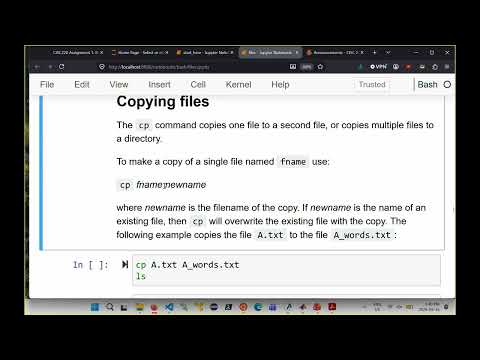 Watch on YouTube →
Overview
Burton Ma explains safe Linux file removal and copying, then shows how Unix permissions control access to files and directories. He demonstrates `rm`, `rmdir`, `cp`, and `chmod`, and introduces standard input, standard output, and standard error, including redirecting command output to a file. He also warns Windows users to work in the Linux filesystem for assignment tasks that depend on case sensitivity or Linux permissions.
Key takeaways
- Linux `rm` deletion is treated as permanent, so use `rm -i` when confirmation is useful and take special care with `rm -r`, which recursively deletes a directory and its contents.
- Deleting a file depends on write permission for its containing directory, not merely write permission on the file, because the filename is an entry in the directory.
- For directories, execute permission allows traversal, read permission allows listing contents, and write permission allows creating, removing, or renaming entries.
- The three digits in an octal `chmod` mode map to owner, group, and others; for example, `750` means owner `rwx`, group `r-x`, and others no permissions.
- Unix standard streams use file descriptors `0`, `1`, and `2` for standard input, standard output, and standard error; Ctrl-D signals end-of-input for interactive commands such as `sort`.
- On Windows systems, case-insensitive filesystem behavior and mismatched permission support can break Linux assignment tasks, so use the Linux filesystem rather than paths under `/mnt/c/Users/...`.
Chapters
- Windows and Linux can access each other's files, but the filesystems handle case sensitivity and permissions differently.
- A prompt starting with a path such as `/mnt/c/Users/...` indicates work on the Windows filesystem, where case-only directory names can cause a copy to target itself.
- Assignment questions involving Linux permissions or case-sensitive names should be done in the Linux filesystem; the assignment document has an error, but its files are unchanged.
- `rm filename` deletes a file, and multiple filenames or a pattern such as `*.txt` can remove several files at once.
- Use `rm -i` to prompt for confirmation before each removal.
- `rmdir dirname` removes only an empty directory; it refuses directories that still contain files.
- `cp source destination` copies a file, overwriting an existing destination file; `diff` can check whether two files have identical contents.
- A glob such as `A*.txt` can select multiple source files to copy into a destination directory, but `cp` does not rename a batch of files according to a pattern.
- Use `cp -r` to copy a directory and its contents; whether the destination directory already exists changes whether the source directory itself is placed inside it.
- The lecture skips hard and symbolic links, noting that they are documented in the notebook but unused in the course.
- Unix permissions support multi-user systems by assigning access rights to a file's owner, its group, and everyone else.
- `ls -l` displays the owner and group alongside permission symbols for each file.
- The first character in the listing identifies the file type: `-` for a regular file and `d` for a directory.
- For a regular file, read allows viewing contents, write allows modifying or truncating contents, and execute allows running it as a program or shell script.
- Writing to a file does not grant permission to delete it; deleting or renaming a file requires write permission on its containing directory.
- Directory read permission lets users list names, execute permission lets them enter or traverse the directory, and write permission lets them create, remove, or rename entries.
- `chmod` changes file or directory permissions using either three octal digits or symbolic notation.
- Each octal digit represents read, write, and execute bits for one class: owner, group, or other; the values range from `0` to `7`.
- `chmod 400 file` gives the owner read access and removes all group and other permissions; `chmod 444 file` grants read access to all three classes.
- `chmod 750 file` grants the owner full access, the group read and execute access, and others no access.
- Symbolic `chmod` uses `u` for owner, `g` for group, `o` for others, and `a` for all users, with `r`, `w`, and `x` for permission types.
- The operators `+`, `-`, and `=` respectively add permissions, remove permissions, or set the selected class's permissions exactly.
- `chmod u=rw file` sets owner access to read and write, while `chmod u+x file` adds execute permission and `chmod u-x file` removes it.
- Comma-separated clauses can update multiple classes at once, such as `u=rwx,g=rx`; symbolic permissions also apply to directories, whose permission meanings differ from regular files.
- A stream is an ordered sequence of bytes; Unix assigns file descriptor `0` to standard input, `1` to standard output, and `2` to standard error.
- In a terminal, standard input normally comes from the keyboard, while standard output and standard error both appear in the terminal.
- `sort` and `cows` can read interactively from standard input; pressing Enter adds a line, while Ctrl-D signals that input is finished.
- Commands usually send normal results to standard output and error messages to standard error, even though both appear on the same terminal by default.
- The `>` operator redirects a command's standard output to a file instead of the terminal.
- `ls -a > files.txt` saves the directory listing in `files.txt`; explicitly writing `1>` has the same effect because the shell assumes descriptor `1` when it is omitted.
- Standard output redirection works with any command that writes its results to standard output; the lecture leaves standard input redirection for the next session.
Transcript excerpt
0:00 Uh, oh, one more thing. Um, so I've seen this twice now. Well, twice in the same office hour session. Um, oh, did I Here we go. Okay. So, if you're working in Windows, um, what you need to remember is that, uh, your Windows file, I mean, you're in Windows, so there's the Windows file system, uh, and then there's the Linux file system. And those two things are um in principle they're separate but in uh well sorry when you're thinking about them they're separate file systems but it turns out that the way it works in Windows is uh Windows has access to both file systems and your Linux file system has access to your Windows file system. um which can be problematic because if
0:49 your files are actually on your Windows file system, a lot of the Linux commands that the assignment asks you to run won't uh work the way you expect them to. So for example, copying that directory which is one of the last uh which question 11 I think uh won't work because um it asks you to copy uh a directory into another directory having the same name except the case changes in Windows. The uh Windows file system case doesn't matter. So you end up trying to copy a directory to itself um and you get the incorrect result. Similarly, Windows doesn't um support the same permissions that Linux uh provides. So, the last two questions won't work if you're on your Windows file system. The way you can tell if you're on your Windows file system is if
1:38 uh you see something like the following. So if your prompt starts with something that looks like that. So root mount C users blah your username your shell is in Windows,
This is the start of the transcript. Save this video free for the whole transcript, searchable and time-coded.
Related notes
Summary, takeaways, and chapters were generated by AI from the video's transcript and may contain errors. The video belongs to its creator, Burton Ma.