Lecture 4: Quoting; Creating and moving files
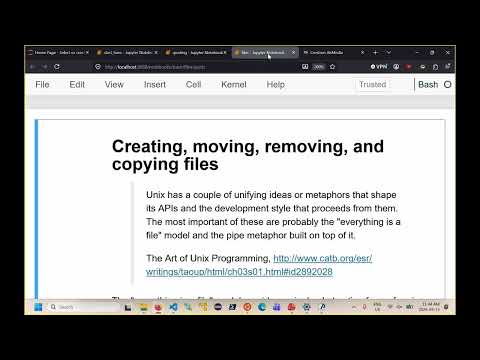 Watch on YouTube →
Overview
Burton Ma explains how Bash handles filenames containing shell metacharacters, showing how backslash escaping and quoting prevent unintended glob expansion. He then demonstrates command-line file and directory operations with `cat`, `touch`, `mkdir`, output redirection, and `mv`, emphasizing that redirection and renaming can overwrite existing data without warning unless options such as `mv -i` are used.
Key takeaways
- Bash expands glob characters before running a command, so escape a literal `*` or quote the filename to avoid accidentally passing multiple matches to `cat`.
- Single quotes preserve every enclosed character literally, whereas double quotes still allow some expansions, including `$` and backticks.
- `touch` creates missing files as empty files but only updates the modification time of existing files; `ls -l` can reveal that timestamp.
- `mkdir -p` creates missing parent directories, making it the practical choice for building a nested directory path in one command.
- Use `>` to replace a file's contents and `>>` to append; neither operator asks for confirmation before changing an existing file.
- `mv -i` adds an overwrite prompt, which matters because moving or renaming onto an existing filename can make the previous file unrecoverable.
Chapters
- Bash treats characters such as `*`, `?`, square brackets, and spaces as having special meanings, even when they appear literally in a filename.
- A backslash escapes the next character, removing its special meaning; spaces and glob characters may need escaping.
- Unix filenames can contain unusual characters, but slash and the null character cannot appear in a filename.
- `cat` outputs a text file's contents to standard output, but an unescaped space splits a filename into multiple shell words.
- Escaping each space lets `cat` read a filename containing spaces, while an unescaped `*` can expand to multiple matching files.
- Escape a literal star to select one intended file; avoid spaces in filenames when possible to simplify command-line use.
- Single quotes make every enclosed character literal, allowing a whole unusual filename to be passed as one argument.
- Double quotes also group a filename, but `$`, backticks, backslashes, and in some contexts `!` can retain special behavior.
- Bash provides single and double quoting, not Python-style triple quotes; quoting a filename may also prevent normal command-line completion.
- Unix filenames are case-sensitive, so `abc` and `ABC` are different names; case handling can differ when transferring files to Windows.
- Names beginning with a dot are typically hidden by ordinary `ls` output, while spaces, tabs, line breaks, and symbols can complicate shell use.
- Avoid starting a filename with `-`, since commands such as `ls` may interpret it as an option; use quoting or other safeguards for filenames you cannot control.
- `touch filename` creates an empty file when that name does not exist, and can create multiple named files in one command.
- For an existing file, `touch` updates its modification time rather than replacing its contents.
- `ls -l` displays a long listing that includes modification time, though its output format can vary across systems.
- `mkdir` creates one or more directories, but a nested path fails if its parent directories do not already exist.
- Use `mkdir -p xxx/y/zed` to create the required parent directories as well as the final `zed` directory.
- `&&` runs the next command only if the preceding command succeeds; the optional `tree` utility displays directory structure hierarchically.
- A single `>` sends a command's standard output to a file, creating it if necessary and silently overwriting its existing contents.
- A double `>>` appends output to an existing file, or creates the file if it does not exist.
- The `cowsay` examples show how command output that normally appears in the terminal can instead be saved in a text file.
- `mv oldname newname` renames a file, while `mv filename directory` moves it into a directory; a destination path can also give the moved file a new name.
- Renaming or moving onto an existing filename replaces that directory entry, with no guaranteed way to recover the previous file's contents.
- `mv -i` asks before overwriting an existing destination, giving the user a chance to decline the operation.
- Directories can also be renamed or moved with `mv`; Burton Ma closes by advising caution with commands that move, rename, or remove files.
Transcript excerpt
0:00 All right. Good >> good morning everybody. >> Okay. So, um in the previous lecture I had shown you how to use sorry what are called globbing patterns. Uh so patterns to match file names um from the command line. Now we saw that the to do the pattern matching we've got these characters star and question mark and the square brackets. Uh and so now the question becomes what happens if you have a file uh whose name contains a star or a question mark or a square bracket in it. Um how do you specify that file given that the shell thinks star bracket and sorry star square bracket and question mark the shell
0:49 interprets those as having a special meaning right? Uh so in Unix and Linux uh the file uh file names are very permissive. Uh so that means that uh you can put almost any character you want in a file name. That includes the new line. So you can put a new line character in a file name if you try uh and if you really wanted to uh if you really wanted to. Uh there's only one character that you're not allowed to use in a file name in Unix and that's the backslash, not the forward slash, right? The forward slash we know about uh but the back sorry can you the forward slash is not allowed in a file name sorry forward slash is not allowed in a file name because that's the directory separator all right so special characters how do
1:37 we deal with special characters so there's several ways that you have to you you can deal with these special characters one of the ways is with quoting so this notebook is called quoting um if you go to start here um
This is the start of the transcript. Save this video free for the whole transcript, searchable and time-coded.
Related notes
Summary, takeaways, and chapters were generated by AI from the video's transcript and may contain errors. The video belongs to its creator, Burton Ma.