Lecture 3: Command structure; Globbing
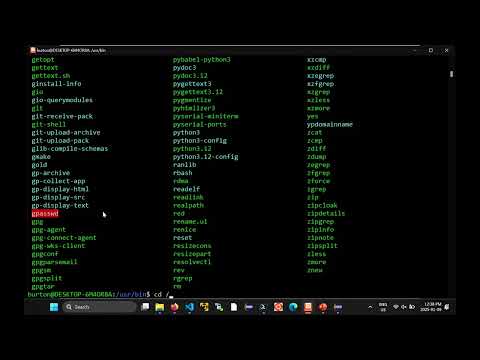 Watch on YouTube →
Overview
Burton Ma explains how Bash interprets commands and how the `ls` utility uses options, arguments, and file-name patterns. The lecture covers built-ins, executables, aliases, and functions; demonstrates command discovery and help tools; and shows how globbing characters such as `*`, `?`, bracket sets, ranges, and POSIX character classes select files.
Key takeaways
- Bash resolves aliases and expands file-name globs before passing arguments to an executable, so `ls *` effectively receives the matching names as separate arguments.
- `ls` treats a directory argument differently from a file argument: it lists directory contents by default, while `-d` prints the directory entry itself.
- The `type` built-in and `which` answer different command-discovery questions: `type` identifies the command form, while `which` locates an executable.
- Use `*` for zero or more characters, `?` for exactly one character, and bracket expressions such as `[0-9]` for one character from a set or range.
- POSIX classes such as `[[:digit:]]` and `[[:upper:]]` provide readable character matching, but require nested square brackets.
- Bash history, `!number` history expansion, and Tab completion reduce repeated typing and help avoid errors in long commands and file names.
Chapters
- Bash can run built-in commands, executables such as `ls`, user-defined aliases, and shell functions.
- The `ll` shortcut is an alias for an `ls` command with options, while `ls` itself can also be aliased to enable color.
- Aliases save typing when a command repeatedly uses the same options and inputs.
- The Bash built-in `type` identifies whether a name such as `ls` or `pwd` is an alias, executable, or built-in.
- `which ls` reports the executable path, such as `/usr/bin/ls`.
- On the demonstrated Linux system, `/bin` is a soft link to `/usr/bin`, so the two paths lead to the same directory.
- `ls` without arguments lists non-hidden entries in the current directory; `ls directory` lists that directory's contents without recursively listing subdirectories.
- Passing a file name to `ls` identifies that entry, while `-s` adds its size in filesystem blocks.
- The `-h` option makes sizes human-readable, and combined short options such as `-sh` can be equivalent to separate options.
- `ls -a` includes hidden entries, including `.` and `..`; `ls -A` includes other hidden entries but omits those two special directory names.
- Hidden files such as `.bashrc` commonly store configuration, including settings Bash reads at startup.
- Short options begin with a hyphen, long options use two hyphens, and commands can take both options and additional arguments.
- `ls -d directory` prints the directory entry itself instead of listing its contents.
- Bash expands `*` before running `ls`, replacing the pattern with matching names from the current directory.
- `ls *` passes matching files and directories as arguments, so directories may display their contents; `ls -d *` lists the matching names instead.
- `ls --help` provides command documentation, while `man ls` opens the manual page in the `less` pager.
- In `less`, `F` or Space moves forward a page, `B` moves backward, and `H` displays pager help.
- A man-page synopsis uses square brackets for optional items and ellipses for repeated or zero-or-more items; manuals are references, not necessarily tutorials.
- Manual sections distinguish commands with identical names, and glob-pattern documentation is accessed with `man 7 glob` rather than the default `man glob`.
- The Up and Down arrows navigate Bash command history, allowing a previous command to be edited and rerun.
- The `history` command lists numbered commands, which can be rerun using history expansion such as `!45`.
- Tab completion finishes unique command or file-name prefixes; pressing Tab again can display multiple matches, such as `cow` commands.
- A `*` matches any sequence of characters, including an empty sequence; `f*` therefore selects names beginning with `f`.
- Bash expands a pattern such as `f*` into individual file-name arguments before running commands like `ls` or `cat`.
- Patterns can combine fixed text and wildcards, for example `*ipynb` for names ending in `ipynb` or `file*s*` for names beginning with `file` and containing a later `s`.
- A `?` matches exactly one character, so `t?.*` requires a name beginning with `t`, one additional character, a dot, and any following text.
- Square brackets match exactly one character from a set, as in `x[12]z`, which matches `x1z` and `x2z`.
- An exclamation mark negates a bracket set, so `[!abc]` matches one character that is not `a`, `b`, or `c`.
- Ranges such as `[a-z]` and `[A-Z]` match one lowercase or uppercase letter, respectively.
- A pattern such as `[0-9][0-9].pdf` selects PDF names beginning with two digits, such as `01.pdf`.
- POSIX character classes include `[:alnum:]` for letters and digits, `[:alpha:]` for letters, and `[:digit:]` for digits.
- A character class must be nested inside an additional bracket expression, as in `[[:upper:]]*` to match names beginning with an uppercase letter.
- Negating a class with `!`, as in `[![:upper:]]*`, matches names that do not begin with an uppercase letter.
- The class syntax can be combined with fixed characters, such as `x[[:digit:]]`, to match an `x` followed by one digit.
Transcript excerpt
0:03 Okay, good afternoon everybody. Uh so you can either follow along in the uh lecture slides for this particular lecture or you can just look in the bash command notebook. Um the content is almost the same uh regardless of which one you look at. So I'm just going to use the slides for now. Uh so these commands that I've been typing into the terminal um they can be one of four different things uh in Bash. Uh so either the command is something that bash understands on its own. So it's a built-in command and we talked a little bit about those in the previous lecture. Um it can be an executable program. So that is you can write your program in perhaps some other language. So C or Java or Python. Um and then you can save it somewhere on your system. um if the location of the program happens to be
0:53 known to the shell uh then you can run that program um from the shell directly right and so um uh so for example the ls program is a program that's written in C uh that's been compiled uh and is runnable for your system um and so that's a command that's available to bash right so your bash uh so your uh your shell can also run programs There are these things called aliases. So an alias is basically a shortcut that the user has created that does some task. Typically it runs some program with some command line options and some inputs. Uh and rather than typing in this long sequence of command uh this long sequence of options and inputs uh you can make a little shortcut. I don't
1:40 actually show you how to do this in the course, but if you want to just look up
This is the start of the transcript. Save this video free for the whole transcript, searchable and time-coded.
Related notes
Summary, takeaways, and chapters were generated by AI from the video's transcript and may contain errors. The video belongs to its creator, Burton Ma.