UNC COMP 301 - F26/Lec 16 - JavaFX (part 1)
 Watch on YouTube →
Overview
Muhammad Sayeed Ghani introduces JavaFX for Java applications, covering Maven setup in IntelliJ, the Application/Stage/Scene structure, and panes for arranging interface components. He connects JavaFX events to the observer pattern and implements button responses in four ways: a named handler class, an anonymous class, a lambda, and the concise setOnAction method.
Key takeaways
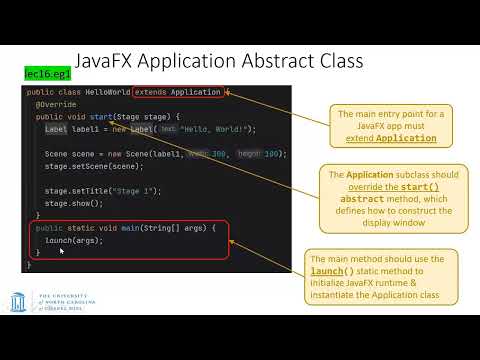
- A basic JavaFX application extends Application and implements start(Stage); a main method that calls launch is useful but not always required.
- JavaFX interface composition follows a Stage-to-Scene-to-root-Pane hierarchy, with panes holding components and potentially nested panes.
- A VBox, HBox, and StackPane provide distinct layouts: vertical sequence, horizontal sequence, and overlapping layers, respectively.
- JavaFX event handling follows the observer pattern: a component emits an event and a registered EventHandler processes it through handle.
- A button action can be implemented with a named handler class, an anonymous class, a lambda, or the JavaFX setOnAction shortcut.
- JavaFX projects in IntelliJ require Maven dependency and plugin configuration, a Maven project reload, and the correct main-class setting.
Chapters
- The lecture introduces JavaFX as a Java graphical user interface library and plans examples, observer-pattern connections, and CSS styling.
- JavaFX is an external module, so the Maven pom.xml needs a JavaFX dependency with its group ID, artifact ID, and version.
- The supplied examples contain Java source directories but not pom.xml, so students must add the dependency themselves.
- Place the dependency section in pom.xml before the build section or near the file's end.
- A JavaFX Maven plugin is needed because running a JavaFX class directly in IntelliJ can produce a missing-runtime-components error.
- Muhammad Sayeed Ghani uploads a pom.xml example so students can copy the dependency and plugin configuration.
- After editing pom.xml, reload all Maven projects so IntelliJ recognizes the JavaFX dependencies and plugin.
- Run the JavaFX plugin configuration rather than the source file's ordinary run command.
- Set the plugin's main class to the desired application, such as the lecture 16 Hello World example, and verify IntelliJ can locate it.
- A JavaFX application extends the abstract Application class and implements its required start(Stage) method.
- The main method is optional when JavaFX can launch the application automatically, but calling Application.launch from main is recommended.
- The start method is the entry point for setting up the interface after JavaFX launches the application.
- JavaFX passes a Stage to start(Stage); the Stage represents the application window.
- Set the Stage title and other window properties, then call show() to display it.
- The Stage can show one Scene at a time, and repeatedly launching the application can create multiple separate windows.
- JavaFX components include labels, buttons, checkboxes, rectangles, circles, and sliders.
- A Pane is a layout container that holds components and determines their arrangement.
- VBox and HBox organize children vertically and horizontally; other pane types support grids and stacked layouts.
- The lecture's second example places three labels inside a VBox, then uses the VBox as the Scene's root.
- The interface hierarchy is Stage, Scene, root Pane, and its child components; panes can also contain nested panes.
- Add children through the pane's children collection, and add the root pane to the Scene.
- A StackPane places its children on top of one another rather than arranging them in rows or columns.
- The example layers a blue square, an orange-red circle, and a label inside the StackPane.
- Insertion order matters because later children appear above earlier ones.
- JavaFX interface components act as event sources, while event handlers play the role of observers or listeners.
- A button can produce click, release, and hover-related changes; other components can respond to events such as a mouse entering a region.
- JavaFX calls an event handler's handle method when the registered event occurs, and the event object carries relevant information.
- A JavaFX Button can be constructed with display text and placed inside a pane so it appears in the Scene.
- The button example uses a 300-by-200 Scene and a VBox, even though the layout contains only one button.
- Creating a button is not enough: it must be added to the pane's children before the Stage displays it.
- The first handler implementation defines a named class that implements EventHandler<ActionEvent> and overrides handle.
- Create a handler instance and register it with the button using addEventHandler for the action event.
- When the button is clicked, JavaFX passes the ActionEvent to handle, which prints the example's case A output.
- The anonymous-class version removes the separately named handler class and defines the implementation inline.
- It still implements EventHandler<ActionEvent> and overrides handle, allowing the handler body to contain fields or multiple methods if needed.
- Register the anonymous handler with the button just as with the named-class version; the case B button prints its corresponding output.
- Because EventHandler has one abstract method, a lambda can replace the anonymous class and omit the method name and explicit parameter type.
- For a one-use handler, the lambda can be passed directly instead of being stored in a separate variable.
- Button.setOnAction is a shorter JavaFX convenience method for action events, avoiding the explicit event-type argument required by addEventHandler.
- The choice app uses a VBox containing a title label, Option A and Option B buttons, and a result label.
- Each button's setOnAction lambda changes the result label to report the selected option.
- The VBox child order determines the display order; alignment and Insets padding improve the layout's appearance.
- The lecture ends by previewing a follow-up layout that combines vertical and horizontal boxes.
Transcript excerpt
0:00 Today we'll be focusing in on taking a look at Java FX which was uh briefly introduced in the last lecture which is one of the more popular graphical user interface uh libraries that is uh being used these days uh for Java and we'll start off taking a look at how to set it up in uh IntelliJ using Maven and then I'll go through a whole series of examples. Uh all the code of course is uh has been uploaded and if you would like you can um run some of these applications as we go along. I can give you some time if you if you need um and I would be curious to know if anybody runs into any problems in running Java FX because I've
0:50 been told that in the past semester some small percentage of students did have problems in running it. But we'll see how it goes. Uh we'll also take a look at um you know the observer design pattern. So as as I mentioned the observer design pattern and Java FX are fairly closely tied together and we'll see how that uh uh that relationship takes place. Uh we'll also take a look at how Java FX uses cascade stylesheets which is a concept that's used from um web programming. uh and then we will probably we won't have time into taking a look at another application which is referred to as a 2048 game but that might we might take a
1:38 look at in the next uh lecture on Tuesday. All right. So let's take a look at how do we set up Java FX in Maven. So the first thing is that it is an external module. So it has to be downloaded. Um, and the way you do that is by uh opening
This is the start of the transcript. Save this video free for the whole transcript, searchable and time-coded.
Related notes
Summary, takeaways, and chapters were generated by AI from the video's transcript and may contain errors. The video belongs to its creator, Muhammad Sayeed Ghani.