Lecture 7: Expansions; Introduction to scripting
 Watch on YouTube →
Overview
Burton Ma explains seven Bash expansions, showing how brace and tilde expansions, command and parameter substitution, arithmetic, word splitting, and filename expansion transform command text. He then introduces Bash scripts, covering shebangs, executable permissions, running scripts from the current directory, and a small script that creates a starter shell file.
Key takeaways
- Bash expansion replaces an expression with its result; the seven types covered are brace, tilde, parameter, command substitution, arithmetic, word splitting, and filename expansion.
- Use $(command) to insert command output and $((expression)) for integer arithmetic; Bash variable assignments must not contain spaces around the equals sign.
- Quote parameter expansions such as "$file" when filenames contain spaces, or word splitting can turn one filename into multiple command arguments.
- IFS controls the delimiters used for word splitting; temporarily setting IFS to a comma can split CSV-style fields, but the original value should be restored afterward.
- A runnable Bash script needs a shebang and execute permission; Linux commonly uses #!/bin/bash, while #!/usr/bin/env bash can locate an installed Bash through PATH.
- Scripts in the current directory generally need to be invoked with a path such as ./hello.sh because the current directory is usually absent from PATH.
Chapters
0:00
Nested Brace Expansion and Tilde-Based Home Paths
- Brace expansion generates multiple strings from comma-separated alternatives or sequence expressions, and nested braces combine those alternatives.
- The nested example combines path fragments such as UCB, lib, ex, and edit to produce four directory names.
- A bare tilde expands to the current user's home directory; tilde followed by a username expands to that user's home, such as Homer Simpson's.
4:30
Command Substitution and Bash Variables
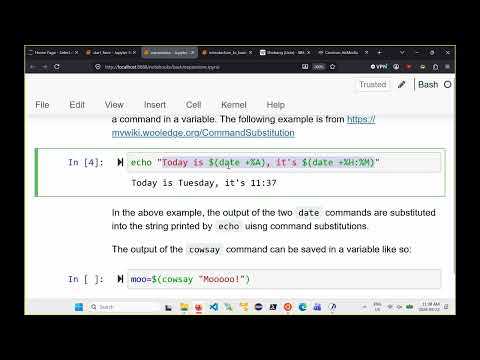
- Command substitution uses $(command) to run a command in a subshell and replace the expression with its output.
- The date examples insert the weekday and a formatted hour-and-minute value into an echo string.
- Bash assignments require no spaces around the equals sign, as in moo=$(command); use $moo to access the variable's value.
11:20
Integer Arithmetic with Bash Arithmetic Expansion
- Arithmetic expansion uses $((expression)), with double parentheses distinguishing it from command substitution.
- Bash supports integer arithmetic but not floating-point arithmetic; the example 5 % 2 evaluates to 1.
- Arithmetic output can be concatenated directly with text, as in a directory name built from dur and $((3 * 5)).
15:15
Word Splitting and Quoting Filenames with Spaces
- Word splitting occurs after earlier expansions and splits unquoted results into fields, normally at spaces, tabs, and newlines.
- An unquoted $file containing cis220 solutions.zip is split into separate command arguments, so unzip cannot find the intended filename.
- Double-quoting a parameter expansion, as in "$file", preserves spaces in the filename and prevents word splitting on that result.
21:20
Changing IFS to Split CSV Fields
- Bash stores its word-splitting characters in IFS, the internal field separator; its default separators are whitespace characters.
- Setting IFS to a comma makes word splitting separate comma-delimited values, as in a student-number and name record.
- Save and restore the previous IFS value after processing, because changing it affects later word splitting and loops in the shell.
28:50
Expansion Order and Filename Expansion
- Bash performs seven expansion types, with word splitting near the end and filename expansion last.
- Filename expansion processes patterns after word splitting, so it is not itself subject to word splitting.
- Ma emphasizes parameter expansion, command substitution, and filename expansion as especially relevant to everyday command-line work and scripts.
30:10
Bash Script Structure and Shebang Directives
- A Bash program is a sequence of Bash commands that the shell reads and executes line by line.
- Scripts in the course use the .sh extension and filenames made from lowercase letters, numbers, and underscores.
- On standard Linux systems, #!/bin/bash selects Bash; on Macs, #!/usr/bin/env bash finds the Bash executable through PATH.
37:10
Creating and Running Executable Shell Scripts
- Create a script in a text editor such as Visual Studio Code, add a shebang and commands such as echo "Hello world", then save it.
- Use chmod to grant execute permission; without it, running the script produces a permission-denied error.
- The current directory is usually not in PATH, so run a local script with ./hello.sh or specify its absolute path.
43:50
Using Shebangs for Other Interpreters and Generating a Starter Script
- A shebang can select another interpreter, such as Python 3, allowing a Python file with a valid interpreter path to run as a program.
- Any commands that work at the Bash prompt, including a fortune command, can also be placed in a Bash script.
- Ma demonstrates a starter-script approach that writes #!/bin/bash to temp.sh and changes its permissions so the file can execute.
Summary, takeaways, and chapters were generated by AI from the video's transcript and may contain errors. The video belongs to its creator, Burton Ma.