CS110A Week 5 Day 1 lesson on 09/15/2026
 Watch on YouTube →
Overview
Indika Walimuni introduces CS110A students to Python, first practicing remote Linux work on the Hills server with SSH, Nano, and a runnable hello-world script, then setting up Google Colab and learning core ideas such as variables, statements, expressions, and print formatting. The lesson ends with hands-on Python Turtle drawing, using a 100-pixel square to demonstrate imports, indentation, functions, abstraction, and debugging; an unrelated campus time-management clip appears midway through the recording.
Key takeaways
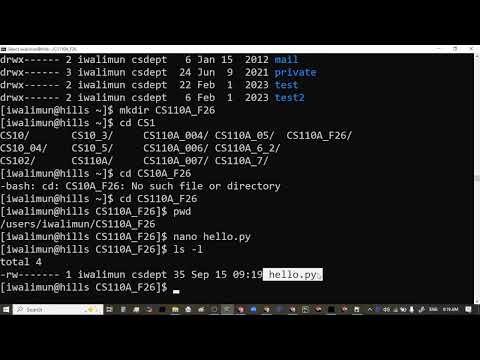
- A remote Linux workflow can cover the full beginner programming loop: SSH into Hills, create a directory, edit hello.py with Nano, run it with python3, verify output, and log out.
- Google Colab notebooks combine executable Python cells with notes and explanations, save to Google Drive, and can be exported as either .py or .ipynb files.
- Python's print function uses a newline for end and a space for sep by default; changing those arguments controls whether output appears on separate lines or stays together.
- Python Turtle turns geometric reasoning into executable steps: four forward-100 and left-90 command pairs produce a square, while a 120-degree left turn traces an equilateral triangle's exterior angle.
- A well-named function demonstrates abstraction by exposing what a task does while hiding its implementation, but accurate naming, capitalization, and indentation are essential for correct execution.
Chapters
0:00
Connect to the Hills Server with SSH
- Students confirm access to Hills credentials and email before connecting remotely.
- Walimuni reviews SSH as a way to use Linux commands and run scripts on a remote server.
- The shell command history can be navigated with the up and down arrow keys.
3:00
Inspect the Linux Home Directory and Create a Course Folder
- The commands ls and pwd show directory contents and the current working path.
- ls -l displays detailed file information, including read and write permissions.
- mkdir creates a CS110A F26 directory, and cd moves into it.
6:00
Write hello.py in the Nano Terminal Editor
- Nano provides a command-line editor for creating and editing hello.py on Hills.
- A Python comment begins with #, while quoted text such as "Hello, world!" is a string literal.
- Ctrl+X opens Nano's exit prompt, where students choose whether to save and can retain or change the filename.
9:00
Run the Script and Submit a Hills Screenshot
- The commands ls and cat verify that hello.py exists and show its contents.
- Running python3 hello.py invokes the Python interpreter and prints the program's output.
- Students submit a screenshot by inserting the image into the discussion and adding alt text describing the Hills hello-world result.
13:00
Log Out Securely and Begin the Python Unit
- Walimuni recommends explicitly logging out of SSH rather than relying on the server's inactivity timeout.
- Students can use the server's password-reset process if needed, while still retaining their old password.
- Python begins the course's programming sequence, with functions planned for the following week and Turtle activities early in the unit.
16:30
Create a Google Colab Notebook in Google Drive
- Google Colab is introduced as the main Python environment, with notebooks saved to the student's Google Drive.
- Colab is based on the Jupyter notebook model and offers free computing, with paid options for additional resources.
- Students can also install Jupyter locally to work offline.
20:00
Run Python Cells and Export Colab Files
- A code cell runs with Colab's play button, and its output appears beneath the cell.
- Notebook cells can mix Python code with explanatory text, notes, and other report content.
- Colab supports downloading a .py script or an .ipynb notebook, and Walimuni shares the class notebook as a view-only link.
24:00
Review CPU, Memory, Cache, and Program Execution
- The computer-system overview identifies input and output devices, storage, memory, the processor, and the clock.
- A program is loaded into memory and then processed through cache and CPU execution.
- The CPU carries out instructions in sequence, with the result eventually sent to an output device.
28:00
Introduce Python's History and Open-Source Ecosystem
- The lesson places Python's origins in the early 1990s and connects its name to the comedy group Monty Python.
- Python 3 was released in 2008, while older Python 2.7 code remains in some legacy systems.
- Python's open-source libraries helped make it a widely used choice for data science and machine learning.
31:00
Use the Python Interpreter and Interactive Shell
- The Python interpreter is introduced as a way to execute code interactively, one instruction at a time.
- Typing python3 at a terminal opens the Python prompt; entering quit exits it back to the shell.
- Walimuni demonstrates local Python installations and notes that an online Python shell can be useful when Python is not installed.
36:00
Calculate a Sample Salary with Variables
- The interactive prompt can act as a calculator for short Python expressions.
- A salary example assigns values to wage, hours, and weeks before calculating and printing salary.
- The equals sign assigns a value to a variable, and each assignment is a separate statement.
41:00
Distinguish Python Statements from Expressions
- A statement is a complete instruction, while an expression evaluates to a value.
- At the interactive prompt, an expression such as a calculation displays its result, while an assignment executes without printing a result.
- A variable name, literal value, calculation, or function call can form an expression.
46:00
Move from Prompt Commands to Reusable Python Programs
- Several lines of Python can be run together as a program instead of entering each line separately at the prompt.
- A saved program can be reused and edited, unlike one-off interactive calculations.
- The class platform also provides a console for running the sample salary program.
51:00
Campus Time-Management Clip: Plan with SMART Goals
- The inserted campus clip recommends beginning with a deadline and working backward through available days.
- Its SMART framework defines goals as specific, measurable, action-oriented, realistic, and time-bound.
- For a 300-page book and 15 available reading days, the example target is 20 pages per day.
56:00
Print Output and Understand Python's Default Newline
- The print function sends values to the screen, and quoted text is a string literal while an unquoted name can refer to a variable.
- By default, each print call ends with a newline, so later output begins on the next line.
- The built-in print documentation identifies the default end value as a newline character.
1:02:00
Print Multiple Values with sep and end
- Passing comma-separated values to print displays them together, separated by a space by default.
- The sep argument can replace that default with a comma, dash, or other text.
- The end argument changes what follows printed output, allowing multiple print calls to stay on one line.
1:12:00
Use Escape Sequences and Read Keyboard Input
- The escape sequence \n represents a newline, while \t inserts a tab and \\ prints a backslash.
- The built-in input function collects keyboard text; Google Colab displays an input box for it.
- Supplying a prompt such as "Enter name" tells the user what to type instead of leaving only a blinking cursor.
1:20:30
Set Up Python Turtle for Visual Programming
- Python Turtle makes code effects visible through an on-screen drawing window, making it a recurring tool for the early course modules.
- Students open the Module 4 activity and use its linked template and setup instructions.
- The setup imports the turtle module, creates a turtle object, and sets its drawing speed.
1:27:00
Draw a 100-Pixel Square and Introduce Abstraction
- A Turtle moves forward 100 pixels and turns left 90 degrees; repeating that pair of commands four times draws a square.
- The turtle behaves like a pen: its default lowered position draws a line as it moves.
- Wrapping the drawing steps in a descriptively named function lets a caller request a square without knowing its implementation.
1:34:00
Debug Turtle Code and Apply Geometry to New Shapes
- Students are coached to check capitalization, including the capital T in Turtle, and to align indented function-body lines.
- A descriptive function name should match what the code actually draws, and a NameError can reveal a misspelled or undefined variable.
- For an equilateral triangle, a left turn is 120 degrees because the turtle turns by the exterior angle, even though each interior angle is 60 degrees.
Summary, takeaways, and chapters were generated by AI from the video's transcript and may contain errors. The video belongs to its creator, indika walimuni.